Diamond Programmer Guide
This guide explains how to flash a single bitmap onto the ETH4K using Diamond Programmer.
Installation
This guide uses the standalone Diamond Programmer, not Lattice Diamond.
- Download the
Programmer Standalonepackage from https://www.latticesemi.com/latticediamond. - Run the installer.
Download the Project (Optional)
This guide assumes that you have already generated a bitmap for the ETH4K. If you would like to use the same bitmap as this guide, you can download and extract the eth4k-demo-guide.zip file.
After extracting this .zip file, you will find a bitmap file named top_bitmap.bin in the my-project directory. This bitmap makes LED1 blink once per second.
Programming the ETH4K
We provide a Diamond Programmer project file called eth4k-boilerplate.xcf which already contains the ETH4K configuration. We recommend cloning this file whenever creating a new Diamond Programmer project.
- Download
eth4k-boilerplate.xcf.zipfrom https://www.thetamachines.com/downloads/hardware/eth4k-boilerplate.xcf.zip. - Extract the zip file to obtain the
eth4k-boilerplate.xcffile. - Launch Diamond Programmer.
- In the
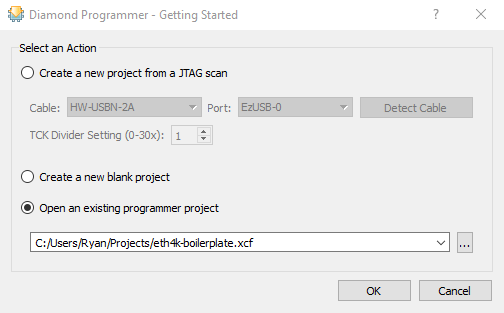
Getting Startedwindow, selectOpen an existing programmer project, choose theeth4k-boilerplate.xcffile, and clickOK.
- Under
File Name, select the bitmap you wish to program the FPGA with. In this example, we're usingtop_bitmap.bin.

- Make sure the ETH4K is plugged into your computer.
- Click the
Detect Cablebutton underCable Settings.

- Select the option that says
ETH4K Aand clickOK.

- Finally program the device by clicking the program button (
 ) in the top toolbar.
- You can also click
Design > Program.
- You can also click
- If all goes well, the output terminal will print
Operation: successful. Your device is now programmed.
Saving the Programmer Project
The eth4k-boilerplate.xcf file is only a starting point for your projects. For that reason, it's good practice to save your own .xcf file for each project.
- In Diamond Programmer, Click
File > Save [file-name.xcf] As... - Save the file in your project's root directory, naming it something like
programming-config.xcf.